
How to add an audio version to every blog post
Use bulk generation for your archive and automatic generation for new posts, so "listen to this article" is on everything you publish.
One episode is a test. An audio version on every post is a feature your readers start to expect. This guide covers the two tools that get you there: bulk generation for the posts you already have, and automatic generation for the ones you have not written yet. Both are part of PRO.
1. Generate one episode first
Before you run a batch, make one episode by hand and listen to it. Settle on the two voices and the speaking instructions you like. If you have not done this yet, follow how to turn a WordPress post into a podcast episode.
2. Set the default voices
Go to Post-to-Podcast → Settings and set the voice and instructions for each speaker. Episodes made in bulk or automatically use these settings, so this is where the sound of your show is decided.
3. Bulk generate your existing posts
On the same Settings page there is a table of your posts with a Podcast Status column. Tick the posts that say Not Generated and click Bulk Generate. Episodes are produced one after another; you can leave the page open and do something else.
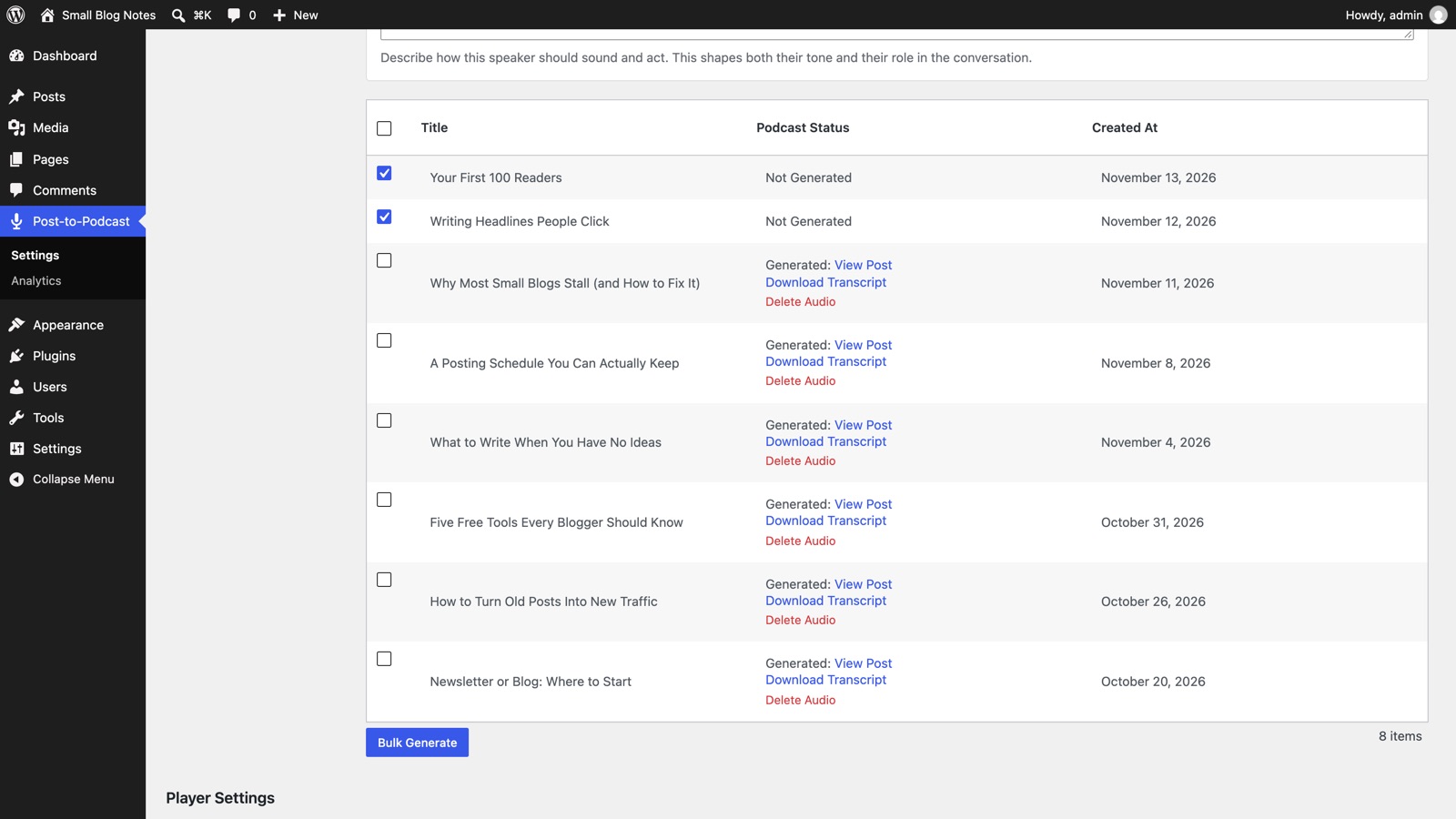
A sensible order: start with the posts that already get the most visits, since that is where an audio option will be used first. Each episode uses one credit, and PRO includes 300 a month, so a large archive can be spread over a few months.
4. Turn on automatic generation
In the same section, switch on Enable Automatic Generation for Future Posts. From then on, each newly published post gets its episode without you opening the Podcast Settings box. If you also publish Pages you want voiced, turn on Enable Pages-to-Podcast.
5. Watch the analytics
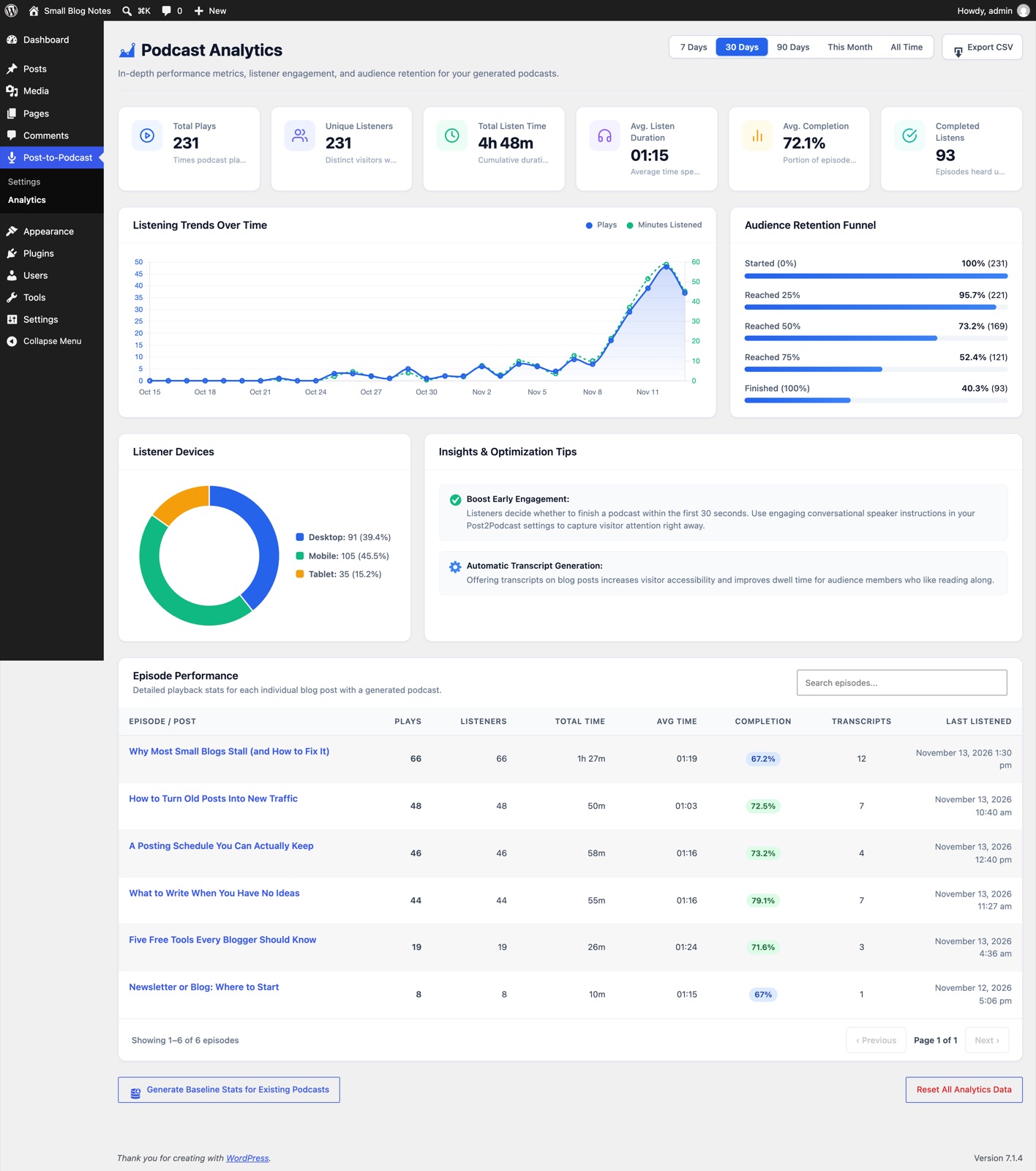
Post-to-Podcast → Analytics shows plays, unique listeners, listen time and completion rate, a retention funnel, devices, and a table per episode that you can export as CSV. It uses anonymous session tokens and no third-party cookies. After a few weeks you will see which kinds of posts people actually listen to, and can adjust the hosts' instructions for the ones they drop early.
Common questions
Will old posts change?
Only by gaining a player at the top. The text of the post is not touched.
What if I edit a post after its episode exists?
The audio does not change by itself. Open the post and generate again; the previous version stays in the version history.
Can I remove an episode?
Yes. Use Delete Audio next to the post in the Settings table, or under the player in the editor.
Can listeners download the MP3?
If you want them to. Turn on Enable MP3 Download Button in the player settings.
Try it on your own post
The first 10 episodes are free (up to 2 minutes each). No card needed.
Get Post2Podcast on WordPress.org